One of the most hidden features, and perhaps the most useful one for turning your tablet into a proper tool for serious work — at least if you work in IT — is the Linux Terminal in Android 16.
Still in beta, this terminal invokes a Debian virtual machine making use of the Android Virtualization Framework. The great advantage compared to Termux is that we are talking about a full Linux distribution, aarch64, running inside a virtual machine. Termux, on the other hand, is a Unix environment similar enough to Linux to run applications on top of Android with Bionic libc, not unlike what Cygwin does on Windows. Therefore, Termux will always have many compatibility issues, and far fewer packages than a real Linux distribution running on top of GNU libc and a standard Linux kernel.
Yes, I am aware of Proot, and that is a bodge that works by intercepting system calls to emulate an unrestricted Linux kernel on top of Android, with performance issues that make a virtual machine faster than it in many tasks.
Enabling the Terminal
Enabling it is straightforward, starting by unlocking the Android developer tools. To do so, simply go to Settings -> About tablet -> Software Information and then repeatedly tap “Build Number”. A counter will appear on screen informing you how many more taps are needed to enable the developer tools.
A new menu called “Developer options” will appear in Settings.
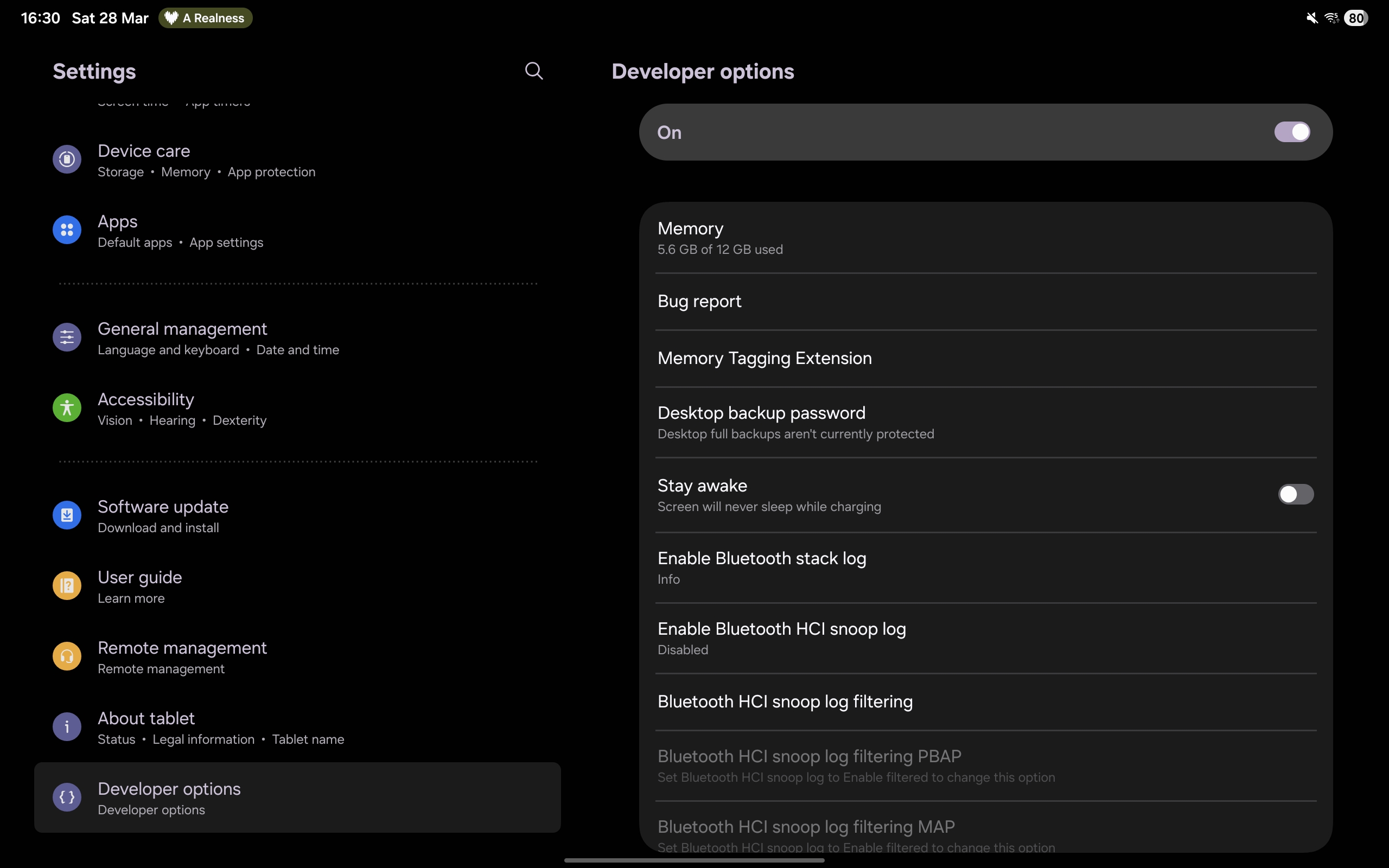
There are a great number of options. Look for “Linux development environment” and enable it. A new icon will appear on your tablet’s app screen, but do not open it just yet. Still in Developer options, look for “Disable child process restrictions” and enable that as well. This is one of two options to use the terminal with fewer headaches, as without it, Android will kill the virtual machine whenever CPU usage is too high — for instance, when compiling a large application.
The second option is to go into the app info of the new Terminal icon on your screen. There, look for “Battery” and select “Unrestricted”. Without this, every time your terminal with the virtual machine goes into the background, it will stop running and freeze.
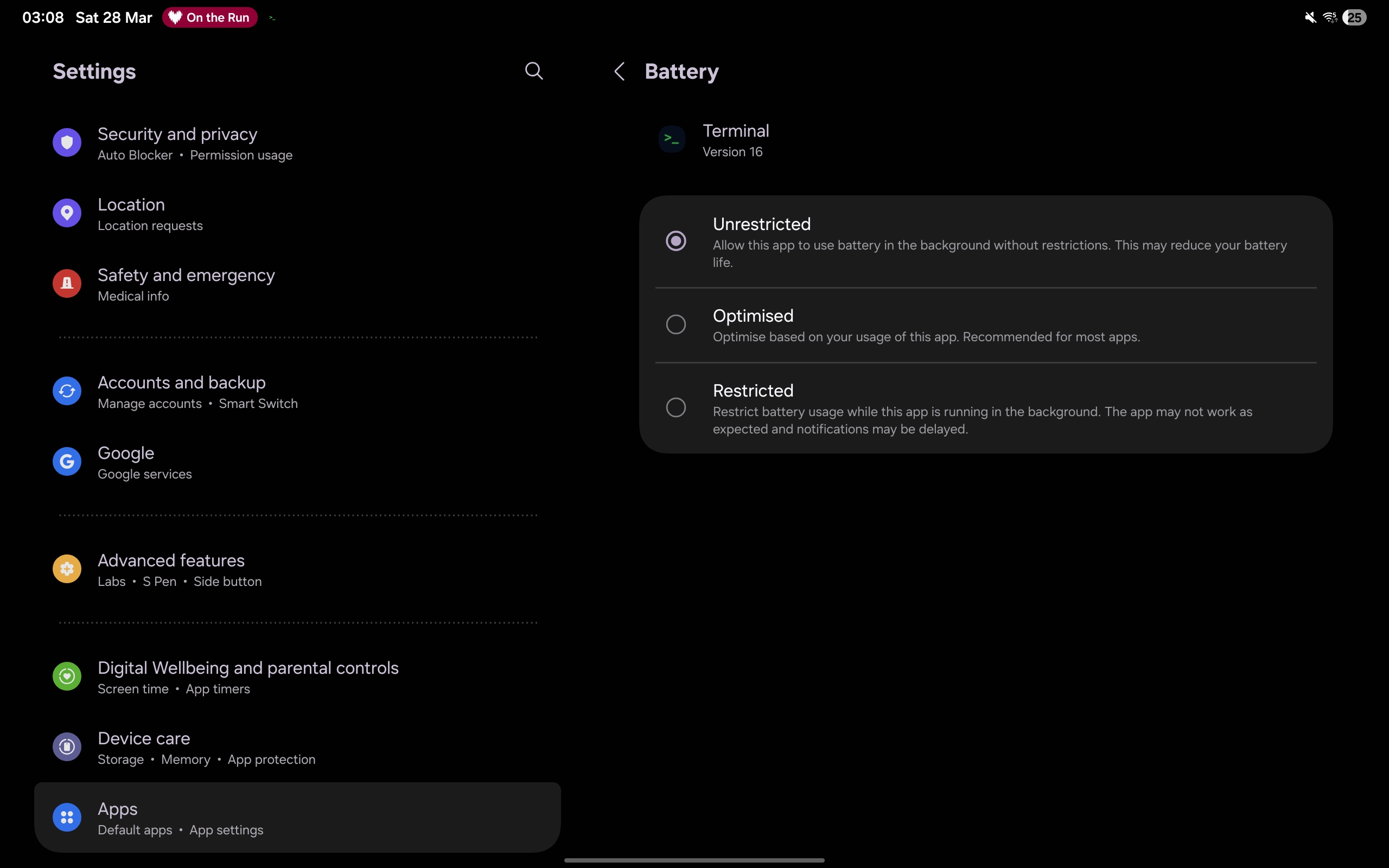
After that, simply open the terminal, and voilà! A complete Linux environment.
The Small Problems
In theory, this would be sufficient for a Linux environment, but it is beta. That means problems. Let us go through the details now:
Small Default Storage Space
The first problem if you want to use this for serious work is how much storage space is allocated by default when creating the virtual machine. Only 5 GB. However, it is possible to resize it without destroying the virtual machine.
Simply go into the options by pressing the gear icon and choose the new size:
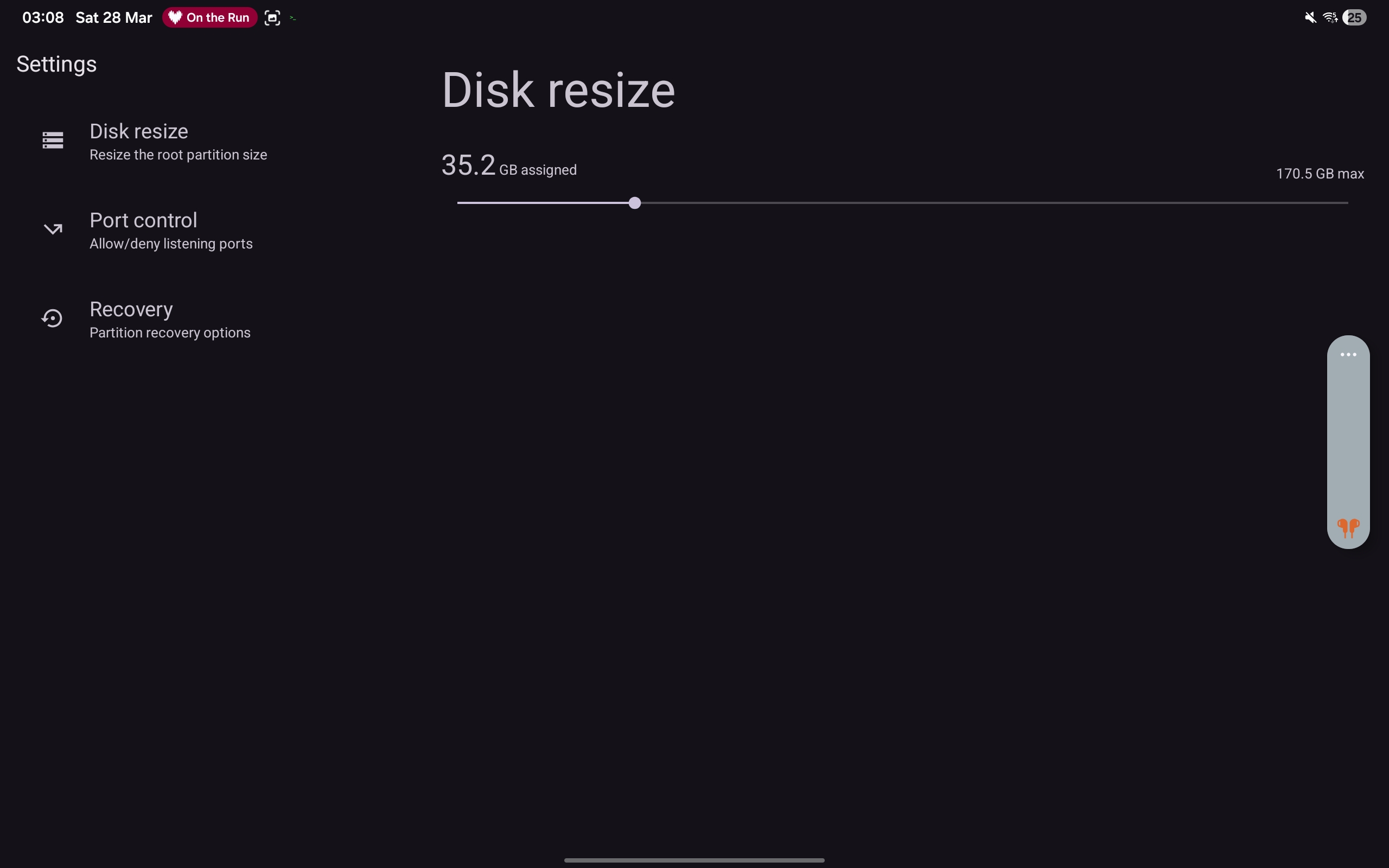
I recommend something like 32 GB for a 256 GB tablet. Unfortunately there is no way to move this to an SD card, so be careful not to choose something too large and consume all of the system’s storage space.
Poor Physical Keyboard Support
The first thing anyone with a critical eye will notice upon opening the default Terminal application is how simple and bare of options it is. No option to adjust the terminal emulation type (vt100, linux, xterm, etc.), no options for custom keyboard shortcuts, and most notably, how poor it is with a physical keyboard. The first thing you will notice if you are not using a standard full US keyboard is that your AltGr key does not work. And since on Android keyboard cases many characters — especially on keyboards with layouts other than English — are only accessible via that key, using the Terminal becomes anywhere from difficult to impossible. For instance, the “/” on ABNT keyboard cases for the Tab S11 is hidden behind AltGr, and cannot be used in the Terminal.
Unfortunately this is a common issue across all terminal applications for Android, whether ConnectBot, HavenSSH or Termius. All of them have poor physical keyboard support, ranging from incorrectly mapped keys to broken dead key support.
And using a tablet for serious work without a physical keyboard is masochism.
This leaves only one terminal option that is very well implemented for Android, with perfect physical keyboard support: Termux. Yes, we are in the odd situation where, in order to use the Linux VM invoked by the Android Linux Terminal, we have to connect to it using an SSH session through Termux.
Running a Local SSH Server to Connect with Termux
Open the Linux Terminal, and once it starts, install openssh-server on your Debian:
sudo apt update
sudo apt install openssh-server
Then change its default port 22 to a port outside the privileged port range. This is because Android does not allow user applications to use privileged ports. In this example I will use port 8022, and add SSH to the system startup:
sudo sed -i 's/#Port 22/Port 8022/' /etc/ssh/sshd_config
sudo systemctl enable ssh
Now open the Terminal options and add port 8022 to the ports allowed for access by the virtual machine, under the Port Control option, by pressing the "+" in Saved Allowed Ports:
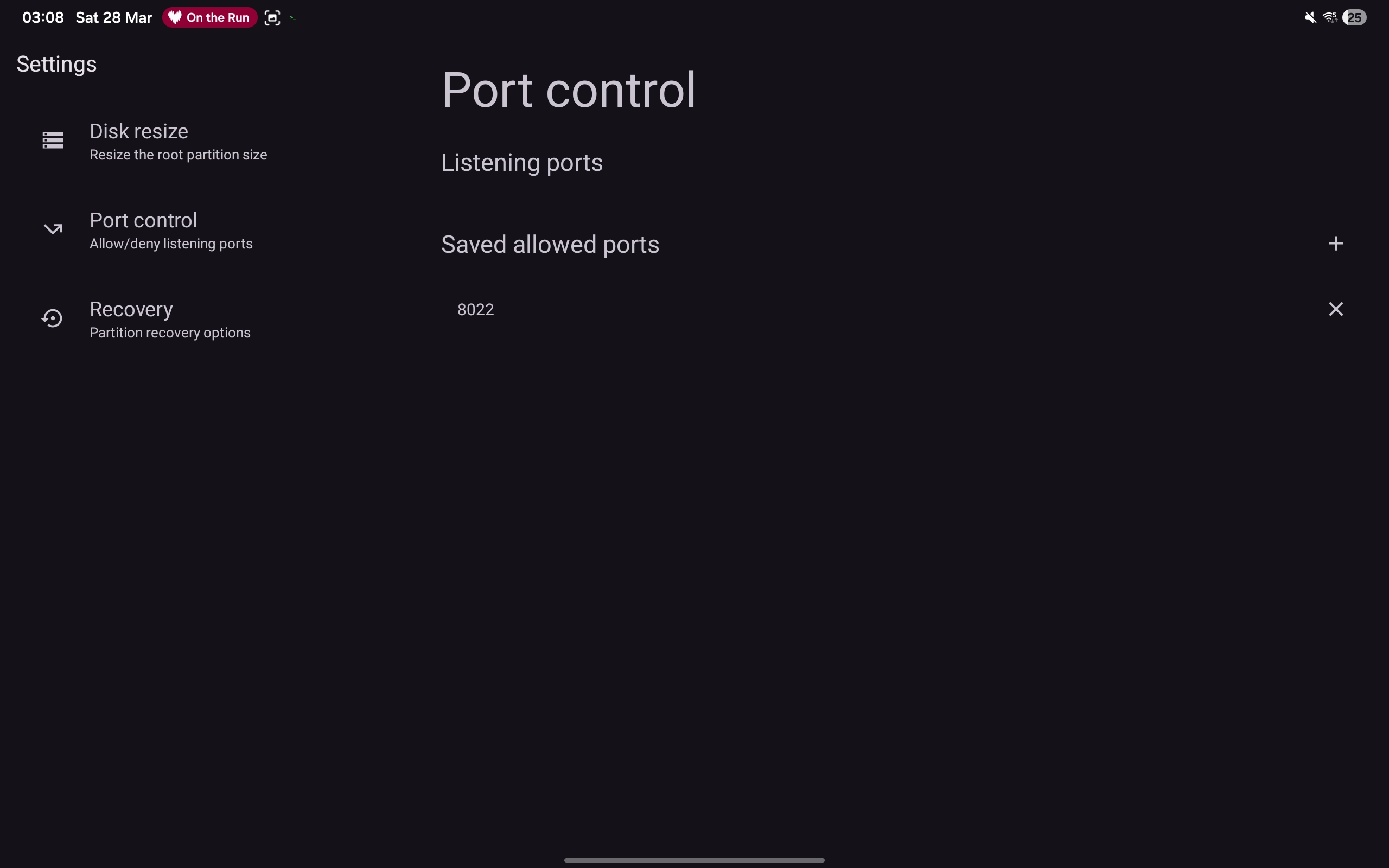
Once done, install Termux from the F-Droid store, open it, install SSH and generate keys for your user, without a passphrase:
pkg install openssh
ssh-keygen -t ed25519 -C "uga@buga"
Generating public/private ed25519 key pair.
Enter file in which to save the key (/data/data/com.termux/files/home/.ssh/id_ed25519):
Enter passphrase for "/data/data/com.termux/files/home/.ssh/id_ed25519" (empty for no passphrase):
Enter same passphrase again:
Your identification has been saved in /data/data/com.termux/files/home/.ssh/id_ed25519
Your public key has been saved in /data/data/com.termux/files/home/.ssh/id_ed25519.pub
Once done, copy the contents of the public key /data/data/com.termux/files/home/.ssh/id_ed25519.pub to the authorized_keys file in the user’s folder on the Linux Terminal:
mkdir .ssh
touch .ssh/authorized_keys
echo "ssh-ed25519 AAAAC3NzaC1lZDI1NTE5AAAAIMxX/g4jCIHZYRuJtWwpdJD2BAAAAAAAAAAAA uga@buga" > .ssh/authorized_keys
chmod 700 .ssh
chmod 600 .ssh/authorized_keys
sudo systemctl restart ssh
Now it is possible to access your virtual machine through Termux and enjoy its excellent physical keyboard support. Simply log in to the virtual machine with:
~ $ ssh -p 8022 droid@localhost
The authenticity of host '[localhost]:8022 ([127.0.0.1]:8022)' can't be established.
ED25519 key fingerprint is: SHA256:WiSQWadTmKLzpC5jrKTtnMlMfcUg/PNBzNvO6PnUQKY
This key is not known by any other names.
Are you sure you want to continue connecting (yes/no/[fingerprint])? yes
Warning: Permanently added '[localhost]:8022' (ED25519) to the list of known hosts.
Linux localhost 6.1.0-34-avf-arm64 #1 SMP Debian 6.1.135-1 (2025-04-25) aarch64

The programs included with the Debian GNU/Linux system are free software;
the exact distribution terms for each program are described in the
individual files in /usr/share/doc/*/copyright.

Debian GNU/Linux comes with ABSOLUTELY NO WARRANTY, to the extent
permitted by applicable law.
Last login: Sat Mar 28 06:43:17 2026
droid@localhost:~$
And that is it — enjoy the terminal with your keyboard without any headaches. With only the minor inconvenience of having to open two applications instead of one to enjoy a complete Linux distribution running at acceptable performance on your tablet.
Only One System Folder Exposed to the Virtual Machine
Only the Download folder is mounted inside the virtual machine at /mnt/shared. It will be your communication point between the Android host and the virtual machine for everything. Everything else is restricted.
Keep Backups of Everything
Stability is not great. The virtual machine will freeze every now and then, especially if you run apt upgrade on it. And it can happen that the virtual machine simply never comes back unless you use the restore option.
And therein lies the problem: that option to restore the virtual machine wipes it completely. Everything you have done or configured on it is lost. Unlike virtual machine applications such as VirtualBox, there is no snapshot option or way to take a full backup of the machine. Once restored, that is it — everything is gone.
Therefore, anything you do that you wish to keep, MAKE COPIES. And always move that copy to the folder shared with the Android system.
Future?
One thing: all of that was tested on OneUI 8.0. If the rumours are right, Samsung will improve the Android Linux Terminal for OneUI 8.5, with things like automatic partition resize, and I hope, better stability and better physical keyboard support.
Unfortunately, all of these will exist only on Mediatek and Exynos offerings. Qualcomm, out of stubbornness — because they don’t want their mobile SoC competing with that crap with Windows that they sell — refuses to implement AVF support to run virtual machines.